Disable Microsoft 365 Direct Send to Stop Internal Spoofing Attacks
Attackers are abusing Microsoft 365 Direct Send to spoof internal users and bypass third-party spam filters. Here is how to block it safely while still allowing approved devices and applications to send email.
Disable Microsoft 365 Direct Send to Stop Internal Spoofing Attacks
Attackers are abusing Microsoft 365 Direct Send to spoof internal users and bypass expected mail filtering paths.
The frustrating part is that this does not require a compromised mailbox.
No password needs to be stolen.
No MFA prompt needs to be approved.
The attacker is abusing the way Direct Send allows unauthenticated SMTP traffic to be sent directly to a tenant's Microsoft 365 mail endpoint.
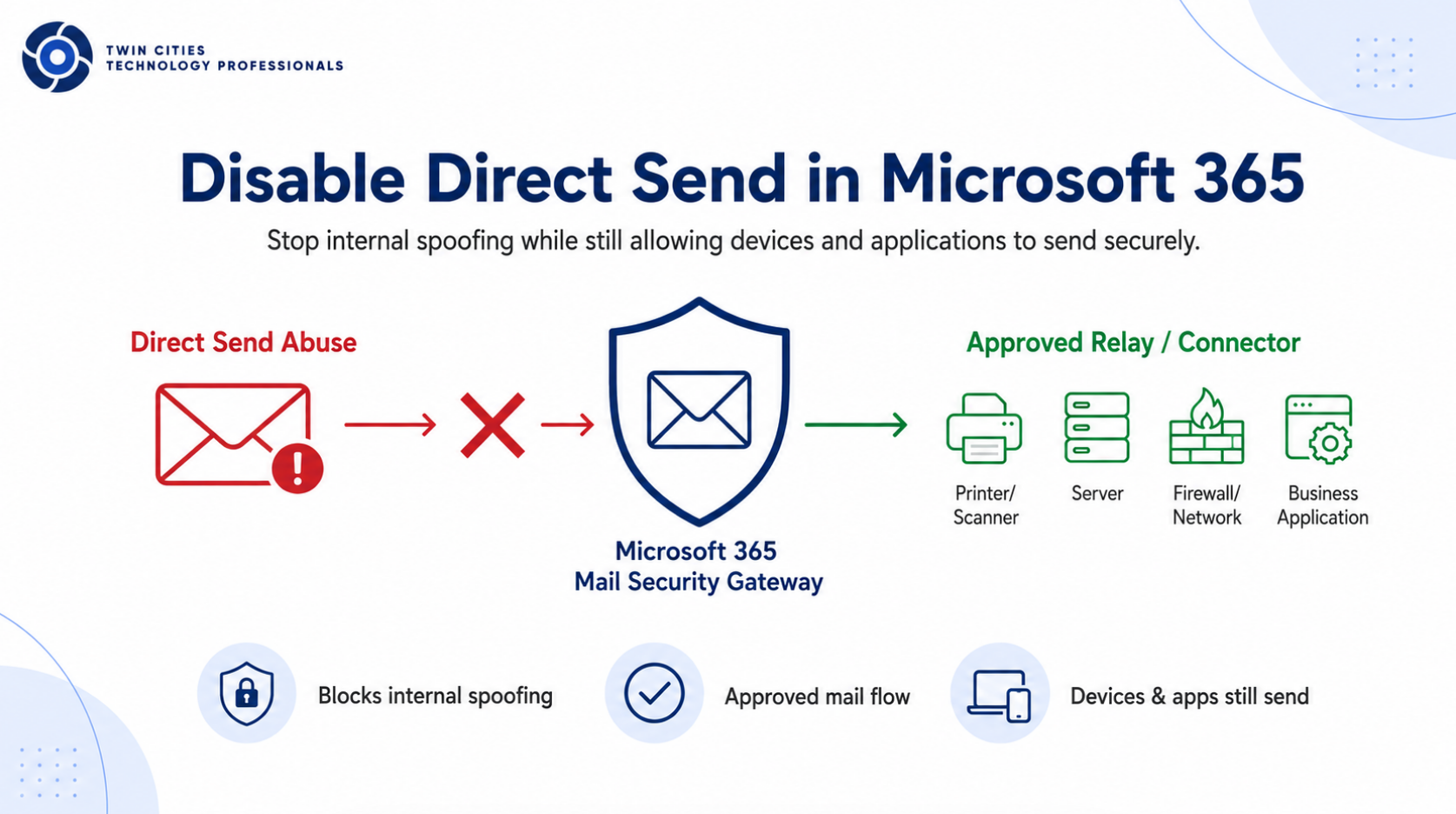
What Is Direct Send?
Direct Send is a Microsoft 365 mail flow option that allows devices and applications to send email directly to Exchange Online using the tenant's Microsoft 365 MX endpoint.
Example:
contoso-com.mail.protection.outlook.com
This is often used by:
| System | Example |
|---|---|
| Printers and scanners | Scan-to-email |
| Firewalls and network devices | Alert notifications |
| Servers | Backup or monitoring alerts |
| Business applications | System-generated messages |
Direct Send is convenient because it does not require a mailbox, username, password, or SMTP authentication.
That is also why it can become a problem.
Why This Is Being Abused
Direct Send can allow unauthenticated SMTP traffic to be delivered directly to Microsoft 365.
Attackers can use this to send messages that appear to come from an internal user.
For example:
From: CEO <ceo@yourcompany.com>
To: Finance Team <finance@yourcompany.com>
Subject: Urgent Payment Request
The email may look internal, even though it was sent by an attacker.
This is especially dangerous when a company uses a third-party spam filter. The attacker may send directly to Microsoft 365 and bypass the normal external filtering path.
That does not mean the third-party filter failed.
It means the attacker went around it.
What This Attack Can Look Like
| Step | What Happens |
|---|---|
| 1 | Attacker finds the tenant's Microsoft 365 MX endpoint |
| 2 | Attacker spoofs an internal sender address |
| 3 | Message is sent directly to Exchange Online |
| 4 | User receives an email that appears internal |
| 5 | User is more likely to trust the message |
This is why internal spoofing works.
People are trained to be suspicious of outside senders. They are less suspicious when the email appears to come from themselves, their manager, finance, HR, or another internal mailbox.
The Fix: Reject Direct Send
Microsoft now provides an Exchange Online setting called RejectDirectSend.
This allows you to block Direct Send at the tenant level.
The goal is simple:
| Before | After |
|---|---|
| Anonymous Direct Send allowed | Direct Send rejected |
| Attackers can attempt internal spoofing | Microsoft 365 blocks the path |
| Devices may send without control | Devices use approved relay/connectors |
| Third-party filter may be bypassed | Mail flow is more controlled |
For most organizations, Direct Send should not be left open just because printers or old applications use it.
Those systems should be moved to an approved relay path.
Before You Turn It On
Do not just enable this without checking what may break.
Look for anything using:
yourdomain-com.mail.protection.outlook.com
on port:
25
Common systems to check:
| System | What to Review |
|---|---|
| Copiers and scanners | Scan-to-email settings |
| Firewalls | Alert email settings |
| Backup systems | Job notification settings |
| Monitoring tools | Alerting configuration |
| Business applications | SMTP server settings |
| On-prem servers | Application or script mail settings |
If a system is sending directly to the Microsoft 365 MX endpoint without authentication, it may be using Direct Send.
Recommended Replacement: Exchange Online Relay Connector
The better approach is to allow mail only from known trusted public IP addresses.
This works well for offices, servers, copiers, firewalls, and applications that send from a known location.
Example design:
| Item | Example |
|---|---|
| Site | Main Office |
| Public IP | 203.0.113.25 |
| Device SMTP server | contoso-com.mail.protection.outlook.com |
| Port | 25 |
| Authentication | None on the device |
| Microsoft 365 control | Inbound connector restricted to the site public IP |
This still allows devices and applications to send email, but only from approved locations.
Create an Exchange Online Connector
Connect to Exchange Online PowerShell:
Install-Module ExchangeOnlineManagement -Scope CurrentUser

Import-Module ExchangeOnlineManagement

Connect-ExchangeOnline
Create an inbound connector for the trusted public IP:
New-InboundConnector `
    -Name "SMTP Relay - Main Office" `
    -ConnectorType OnPremises `
    -SenderDomains * `
    -SenderIPAddresses 203.0.113.25 `
    -RequireTls $false `
    -Enabled $true
Replace 203.0.113.25 with the real static public IP address for the site or system.
Review existing connectors:
Get-InboundConnector | Format-Table Name,Enabled,ConnectorType,SenderDomains,SenderIPAddresses -Auto
Review one connector in detail:
Get-InboundConnector "SMTP Relay - Main Office" | Format-List
Check the Current Direct Send Setting
Run:
Get-OrganizationConfig | Select-Object Identity,RejectDirectSend
Expected values:
| Value | Meaning |
|---|---|
False |
Direct Send is not being rejected |
True |
Direct Send is being rejected |
If this shows False, Direct Send is still allowed.
Disable Direct Send
Enable the setting:
Set-OrganizationConfig -RejectDirectSend $true
Confirm the change:
Get-OrganizationConfig | Select-Object Identity,RejectDirectSend
Expected result:
RejectDirectSend
----------------
True
At this point, Microsoft 365 should reject Direct Send traffic.
Rollback Command
If something breaks and you need to temporarily roll back:
Set-OrganizationConfig -RejectDirectSend $false
Then verify:
Get-OrganizationConfig | Select-Object Identity,RejectDirectSend
This should only be temporary.
If something breaks, the long-term fix is to move that system to an approved connector, not leave Direct Send open.
Basic Rollout Plan
Use a simple rollout process:
| Step | Action |
|---|---|
| 1 | Identify devices and applications sending email |
| 2 | Check which ones use the Microsoft 365 MX endpoint |
| 3 | Create Exchange Online relay connectors for approved public IPs |
| 4 | Test scan-to-email, alerts, and application notifications |
| 5 | Enable RejectDirectSend |
| 6 | Monitor message trace and user reports |
This avoids breaking legitimate email while closing the unauthenticated Direct Send path.
SPF Still Matters
If you allow a public IP address to relay through Microsoft 365, make sure your SPF record includes that IP.
Example:
v=spf1 ip4:203.0.113.25 include:spf.protection.outlook.com -all
Use your real public IP address.
Do not copy the example IP into production.
Final PowerShell Checklist
# Connect to Exchange Online
Connect-ExchangeOnline

# Check current Direct Send status
Get-OrganizationConfig | Select-Object Identity,RejectDirectSend

# Review existing inbound connectors
Get-InboundConnector | Format-Table Name,Enabled,ConnectorType,SenderDomains,SenderIPAddresses -Auto

# Create approved relay connector
New-InboundConnector `
    -Name "SMTP Relay - Main Office" `
    -ConnectorType OnPremises `
    -SenderDomains * `
    -SenderIPAddresses 203.0.113.25 `
    -RequireTls $false `
    -Enabled $true

# Disable Direct Send
Set-OrganizationConfig -RejectDirectSend $true

# Confirm Direct Send is rejected
Get-OrganizationConfig | Select-Object Identity,RejectDirectSend
Bottom Line
Direct Send is convenient, but it creates an unauthenticated path that attackers can abuse to spoof internal users.
The fix is not to break scanners, copiers, firewalls, servers, or business applications.
The fix is to move legitimate systems to approved Exchange Online relay connectors and then disable Direct Send with:
Set-OrganizationConfig -RejectDirectSend $true
That gives you the best of both worlds.
Devices and applications can still send email.
Attackers lose the easy anonymous Direct Send path.