Microsoft Is Retiring SMS and Voice MFA: What Microsoft 365 Admins Should Do Before September 1
Microsoft will automatically enable passkeys for SMS and voice users beginning September 1, 2026. Here is how Microsoft 365 administrators can temporarily opt out and run a controlled migration.
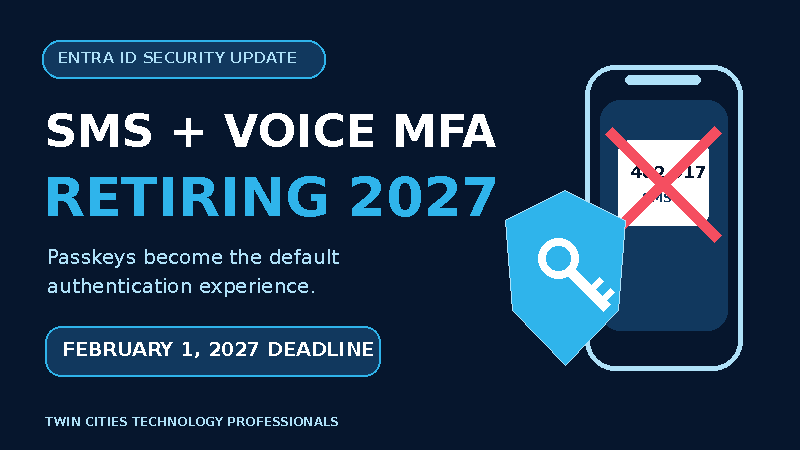
Microsoft-provided SMS and voice authentication will retire in Microsoft Entra ID on February 1, 2027.
The more immediate date for Microsoft 365 administrators is September 1, 2026. Microsoft will automatically enable passkeys for users still enabled for SMS or voice and place them into a registration campaign. The next time an affected user completes MFA, Microsoft may prompt that user to register a passkey.
Most organizations should not let an automatic Microsoft prompt become their rollout plan.
Read Microsoft's retirement guidance
The Dates Administrators Need to Know
| Date | Change |
|---|---|
| September 1, 2026 | Users enabled for SMS or voice are automatically enabled for passkeys and added to a Microsoft-managed registration campaign. |
| February 1, 2027 | Microsoft-provided SMS and voice delivery ends. |
| After February 1, 2027 | Users whose only available MFA method is SMS or voice receive a blocking prompt to register a passkey before continuing. |
There is no opt-out from the February 1 retirement. There is, however, a temporary opt-out from the automatic September passkey and registration-campaign changes.
First: Temporarily Opt Out of the September Rollout
The temporary opt-out gives IT time to choose supported methods, pilot the experience, and migrate users in planned groups. Microsoft exposes the setting through the Graph beta endpoint, and PowerShell is the simplest way to apply it.
The signed-in administrator needs the Authentication Policy Administrator role and the delegated Policy.ReadWrite.AuthenticationMethod permission.
Run these commands in one PowerShell session.
1. Install the Microsoft Graph authentication module
Install-Module Microsoft.Graph.Authentication -Scope CurrentUser
2. Import the module
Import-Module Microsoft.Graph.Authentication
3. Connect to Microsoft Graph
Connect-MgGraph -Scopes "Policy.ReadWrite.AuthenticationMethod"
4. Set the Authentication Methods Policy endpoint
$Uri = "https://graph.microsoft.com/beta/policies/authenticationMethodsPolicy"
5. Back up the current policy
Retrieve the current policy:
$CurrentPolicy = Invoke-MgGraphRequest `
    -Method GET `
    -Uri $Uri `
    -OutputType PSObject
Save a copy in the current folder:
$CurrentPolicy |
    ConvertTo-Json -Depth 20 |
    Set-Content `
        -Path ".\AuthenticationMethodsPolicy-Before-OptOut.json" `
        -Encoding UTF8
6. Create the opt-out request
$Body = @{
    optOutSettings = @{
        passkeyDynamicMigration = $true
    }
} | ConvertTo-Json -Depth 5
7. Apply the temporary opt-out
Invoke-MgGraphRequest `
    -Method PATCH `
    -Uri $Uri `
    -Body $Body `
    -ContentType "application/json"
8. Verify the setting
$UpdatedPolicy = Invoke-MgGraphRequest `
    -Method GET `
    -Uri $Uri `
    -OutputType PSObject
Check the opt-out value:
$UpdatedPolicy.optOutSettings.passkeyDynamicMigration
The result should be:
True
9. Disconnect from Microsoft Graph
Disconnect-MgGraph
The property name is counterintuitive: setting passkeyDynamicMigration to $true activates the temporary opt-out. It does not extend the February 1, 2027 deadline.
Step 1: Find Affected Users
Go to:
Microsoft Entra admin center > Entra ID > Authentication methods > Activity
Review Registration to see configured methods and Usage to see what users actually use.
Microsoft also provides an official SMS and voice usage analyzer.
Separate users into these groups:
| User Group | Priority |
|---|---|
| SMS or voice is the only usable MFA method | Migrate first |
| A stronger method is registered but SMS is still used | Validate the stronger method, then remove phone MFA |
| Already using passkeys, Windows Hello, or FIDO2 | Confirm successful usage |
| Documented exception that still requires telecom MFA | Evaluate a customer-managed provider |
Step 2: Choose the Replacement Methods
| User Type | Practical Target |
|---|---|
| Managed Windows users | Windows Hello for Business or Entra passkey on Windows |
| Mobile and cross-platform users | Passkey in Microsoft Authenticator or an approved synced passkey |
| Administrators and high-risk users | Device-bound passkey or physical FIDO2 security key |
| Shared-device workflows | FIDO2 key or another tested portable credential |
Authenticator push is not retired, but it is not phishing-resistant. Treat it as a transition method rather than the final destination.
Step 3: Enable Passkeys for a Pilot Group
Go to:
Entra ID > Authentication methods > Policies > Passkey (FIDO2)
Confirm that:
- Passkeys are enabled for a pilot security group.
- Self-service setup is allowed.
- The passkey types your organization supports are permitted.
- Privileged users have a stronger profile where appropriate.
- Temporary Access Pass is available for onboarding and recovery scenarios.
Start with IT and representative users. Test registration, Microsoft 365 sign-in, device replacement, recovery, and Conditional Access.
Give Users One Registration URL
Users can manage their authentication methods at:
https://aka.ms/mysecurityinfo
https://aka.ms/mfasetup currently opens the same Security info page, but aka.ms/mysecurityinfo is clearer for ongoing use.
After signing in, the user selects:
Add sign-in method > Passkey
The link works well in pilot instructions and help desk documentation. It opens Security info, not the passkey wizard, so users still select Add sign-in method and Passkey.
Step 4: Use a Registration Campaign
After the pilot succeeds, go to:
Entra ID > Authentication methods > Registration campaign
Target migration groups in waves. The campaign prompts eligible users after sign-in and MFA.
For each wave:
- Notify users before the prompt begins.
- Give them the Security info URL and device-specific instructions.
- Confirm the new method was registered and successfully used.
- Confirm the recovery process works.
- Remove the group from SMS and voice policies.
- Monitor sign-in failures and support tickets.
Do not remove SMS or voice until the replacement method has been tested.
Do Not Forget SSPR and Emergency Access
The retirement also affects self-service password reset. Review SSPR separately. Emergency-access accounts should not depend on an employee phone or the same authentication path used by normal users.
Bottom Line
Microsoft is giving administrators a transition window, not a reason to wait.
The practical sequence is:
- Apply the temporary opt-out.
- Inventory SMS and voice users.
- Choose approved phishing-resistant methods.
- Pilot passkey registration and recovery.
- Roll out with targeted registration campaigns.
- Remove SMS and voice after each group is verified.
Passkeys are the right direction. The rollout still needs to be controlled by IT rather than introduced to users through an unexpected Microsoft prompt.